
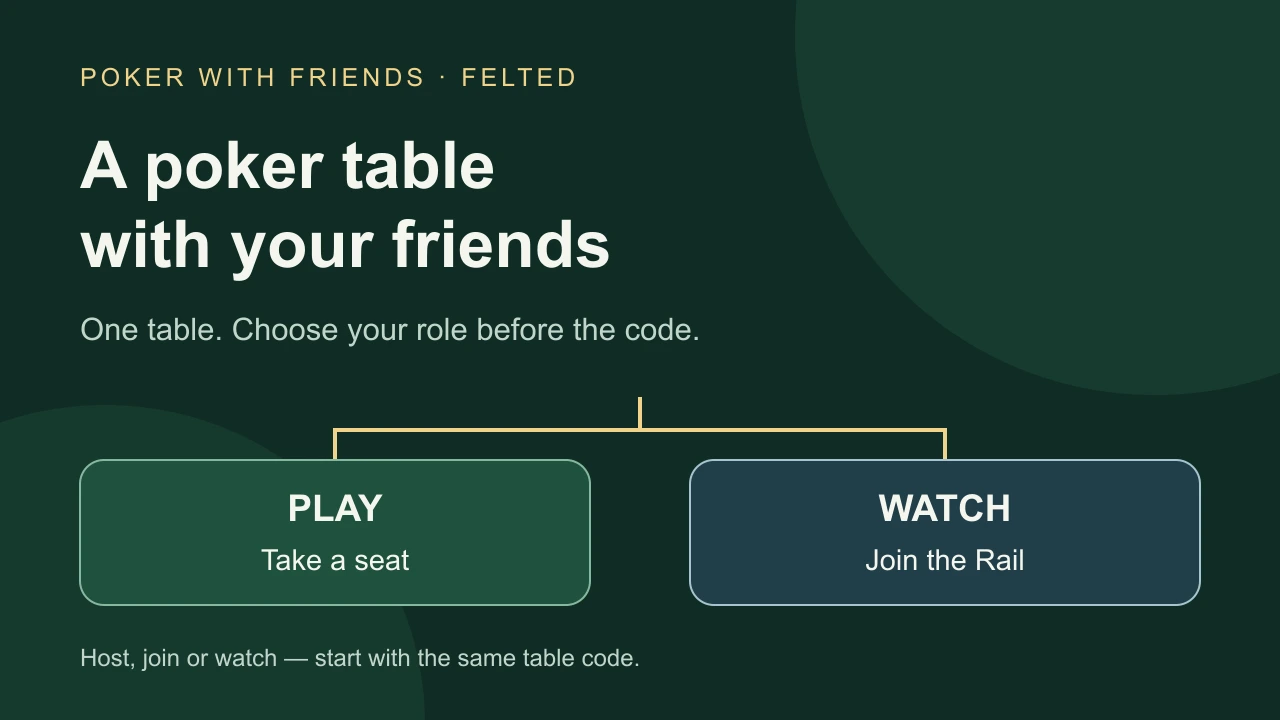
To play poker with friends in Felted, open Play with Friends, host a private table and share its six-character invite code. Guests can take a seat or watch from the Rail. Choose the watching option before finishing the code: the current join screen submits automatically when the sixth character arrives.
This guide covers an ordinary private, two-to-six-player Texas Hold'em table. Its table chips are separate from each person's account bankroll and have no cash value. It is a way to play hands together, with no cash-out or real-money prizes. The current App Store listing and Google Play listing describe this private-table mode.
GTO Solutions AS publishes Felted and GTO Gecko. We checked the English setup flow against current first-party implementation and official listings on September 7, 2026. The exact controls below were reviewed in first-party source and local UI tests with simulated services; we did not play a multi-device game on installed store apps.
Get the group ready before creating the room
Ask everyone to install Felted and open it while connected. Felted's support page distinguishes offline Campaign and Training from Play with Friends, which needs internet. Arrange a start time and decide who intends to play and who only wants to watch. The table limit can start running as soon as the host creates it, so get the group ready first. Keep the code in your chosen group rather than publishing it: it is how guests find the table.
For this walkthrough, stay in Play with Friends. Offline Campaign, public tables and Clubs have different purposes. In particular, the offline campaign's pause-and-resume behavior is not a promise that a live private table will wait whenever someone switches apps.
Host: create one table and check its settings
- Open Play with Friends and choose Host a game.
- Review Blinds, Starting stack, Seats and Action timer. The seat count includes the host; watchers are separate. Select the available settings your group agreed on. A Pro badge means that setting requires Felted Pro. Buying chip packs does not unlock it.
- Choose Create & get code. When the waiting room appears, use Copy code or Share code to pass that table's code to the group.
- Keep everyone on that same code. Creating another room produces another table; it does not help a guest join the first one.
The inspected create screen starts at 5/10 blinds, a 2,500-chip starting stack, six seats and a 30-second action timer. These are defaults, not an optimal game prescription. The stack is 250 big blinds because 2,500 ÷ 10 = 250. If your group changes the big blind, read the starting stack again rather than assuming the same chip number describes the same game.
There are two different clocks. The action timer controls an individual turn; the hosted-table duration limit controls the room. In the reviewed implementation, running out of action time causes a check when legal or a fold, so it is not a pause button. The current non-Pro flow sets a 30-minute limit from table creation, not from the first deal; the implementation lets a hand already underway finish before closing. The official listings describe unlimited-duration hosting and additional controls with Felted Pro. Check the displayed limit before creating the room, especially on a different app version. Choosing a longer action timer does not extend the room lifetime.
Guest: decide whether to play or watch first
Open Join a game. The default is Take my seat. To spectate, first select Just watch instead, then enter or paste the six-character code. Completing the code submits the currently selected path; do not expect a separate final confirmation after pasting it.
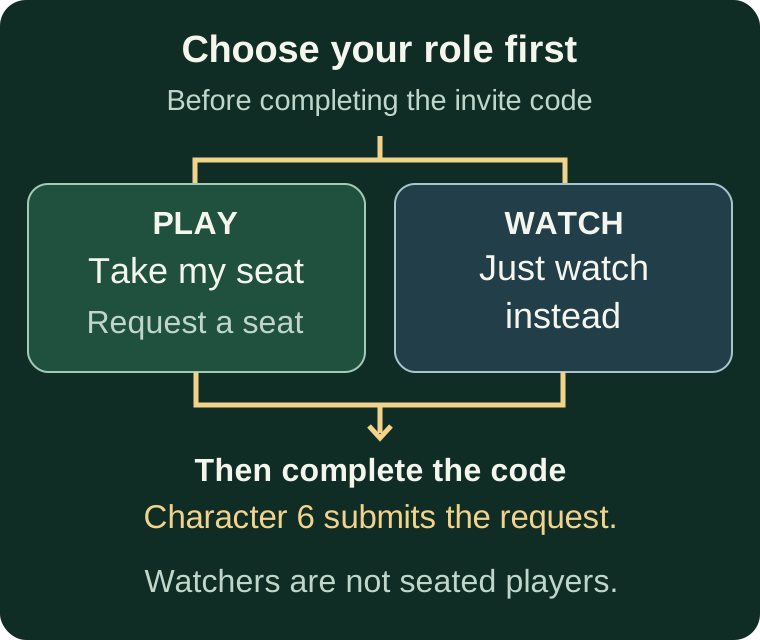
If you are a new player trying to take a seat while the table is full or a hand is underway, the join screen can offer a watching route. It changes the selected path for another attempt; it does not automatically admit you to the Rail. Watching is not the same as being seated for the next deal. From the Rail, look for an available seat and use the seating control when the table permits it. Watching itself can be unavailable if the host has closed the Rail or its capacity has been reached. The current version's release notes explicitly describe watching a friend's private table and then taking an open seat.
The Rail is designed to show the board and betting without exposing live hidden hole cards. This is a description of the intended view, not a security certification. Agree who is watching, and avoid screen-sharing a player's private cards or discussing live hands with that player. Watching together should not give one seated friend information the others lack.
The first-deal rehearsal
Before the host presses Shuffle up & deal, run this short check. It is our coordination procedure, not a measured claim that it prevents every connection problem.
- Host: read the blinds, starting stack, seat count and timing limits back to the group.
- Each player: confirm that you appear in the seated-player list at the intended table.
- Each watcher: confirm that you entered the Rail, rather than assuming a successful code means a seat.
- Host: check that at least two seated players have chips and are sitting in, then start when the intended group is ready. Six seats is a maximum, not a requirement to fill the table. The waiting screen distinguishes waiting for another player from waiting for the host.
For example, suppose Alex hosts, Blake wants to play, and Casey wants to watch. Blake keeps Take my seat; Casey selects Just watch instead before completing the same code. Alex checks for two seated players—Alex and Blake—then deals. If Blake has not joined yet, Alex plus Casey on the Rail is only one seated player. Watching does not satisfy the two-player start condition.
Open the printable host card for a reusable invitation and the check above. Replace its blanks yourself; it does not connect to Felted, generate a valid invite code or send invitations.
When someone cannot join
| What you see | What to check |
|---|---|
| No game with that code | Ask the host to copy the code from the current table. Confirm everyone is using the same room. |
| Table full | Check the occupied seats. Use the offered watch route if you want to spectate; that does not reserve a seat. |
| Hand in progress | As a new player, use the offered watching route and wait for a seating opportunity. Re-entering the code does not add you to the active hand. Reconnecting to an existing seat is a different case. |
| Waiting for the host | The host needs to start the game. Do not create a replacement table just because cards have not been dealt. |
| Too many tries | Wait as instructed, then verify the code before retrying. |
| Could not create the table | Check connection and any sign-in prompt. Read the inline message; settings marked as requiring Pro need the appropriate entitlement. |
If the problem persists, contact Felted support with the app version, device, attempted steps and what appeared. Do not send passwords or sign-in codes. Describe whether the problem happened while creating, taking a seat, watching or starting; those are different parts of the flow.
What this check covers
The guide follows the English ordinary-private-table flow associated with Felted 1.7.0. We compared current listings with the implementation and checked the host, join-intent and waiting-room paths using local UI tests with simulated services. Those tests do not play a production game and do not establish cross-device connectivity, server availability, purchase fulfillment or every installed build's behavior. The setup suite also exposed a seat-slider accessibility assertion that failed in our local Flutter environment; we make no full-app accessibility claim. Settings can change, so check the controls and limits displayed in your build.
For a small group that wants both offline Hold'em practice and a private online table, Felted is our recommendation. Get Felted for iPhone or iPad or check Felted on Google Play, then organize the first table using the role check above.
Sources and checks
- Felted's US App Store listing: private tables, separate table chips, Pro controls and 1.7.0 Rail release notes. Accessed September 7, 2026.
- Felted's US Google Play listing: private-table scope and current controls. Accessed September 7, 2026.
- Official Felted support: internet requirements and support-report instructions. Accessed September 7, 2026.
- Walkthrough method, branch cases and limitations: what we reviewed and how to repeat the first-deal check.